
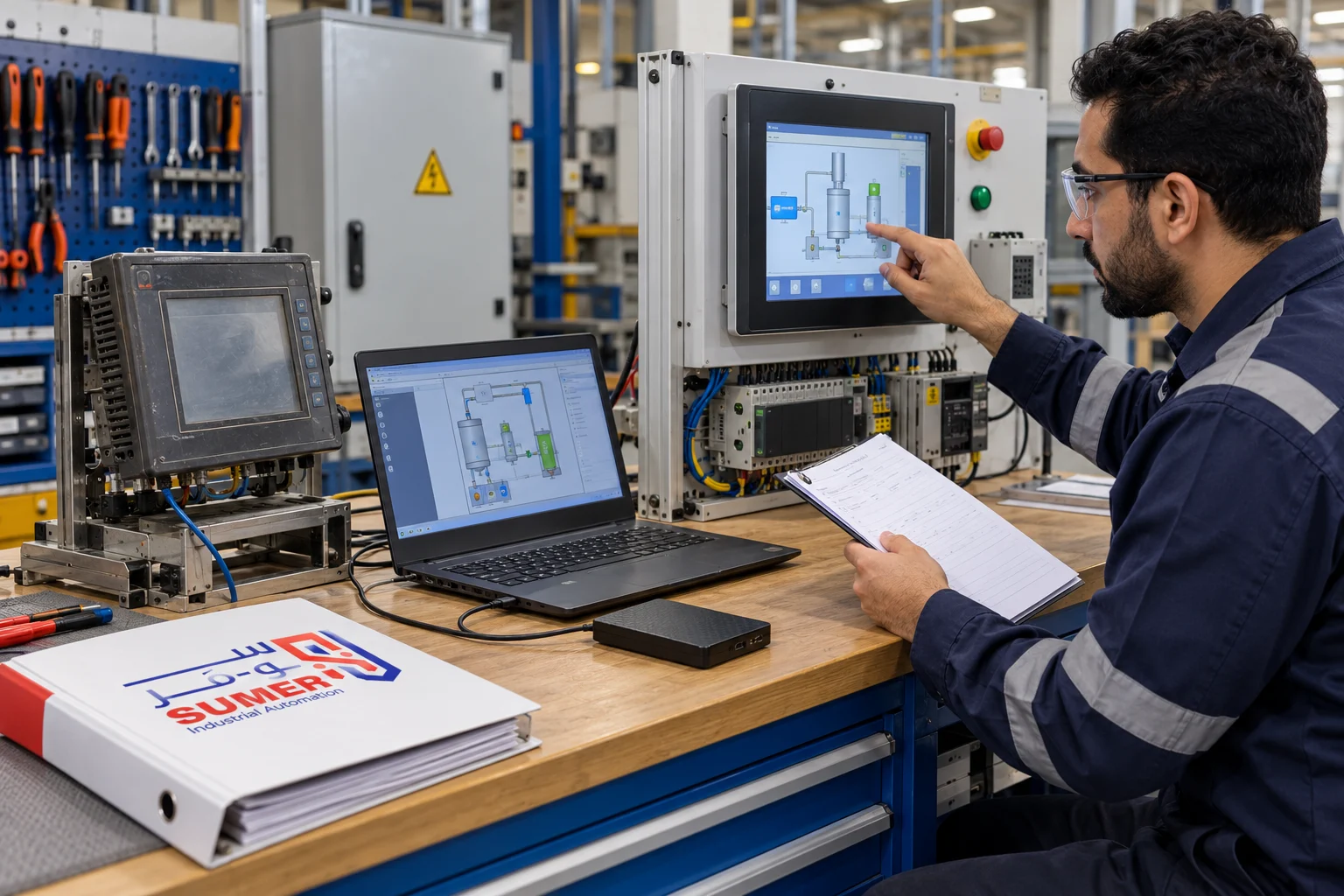
When searching for Delta HMI Software, you will come across the names DIAScreen and DOPSoft, but choosing the software is not based solely on the most popular name. First, you must read the complete Delta screen code, determine the series, project version, firmware, and connection method, and then use the compatible software and version. Choosing an inappropriate tool may prevent the project from opening or the screen from being recognized, and a careless "Download" could overwrite the working project.
The Short Answer: Delta currently offers DIAScreen as the HMI software for the DOP-100 and TP series, which can be installed and managed via DIAInstaller. As for DOPSoft 4, Delta announced its end-of-support on October 23, 2023, recommending a transition to DIAScreen because the old DOPSoft software no longer receives updates or security patches. However, some older projects remain tied to DOPSoft or Screen Editor, so every screen and file must be evaluated before conversion.
This guide explains the differences between the programs, how to access the official Delta HMI software download, how to match the software with the screen, the critical difference between Upload and Download, and the steps for backup, conversion, and testing. If you have an existing project and need a compatibility review, send the screen code, project file, and a screenshot of the error message to the SUMER team.
What is Delta HMI Software?
Delta HMI programming software is an engineering environment used to create the operator interface project for Delta screens, configure the screen model and communication with the PLC or other devices, design pages, link elements to addresses, and set up alarms, recipes, user permissions, and data logs, based on the capabilities supported by the model.
The software is not a substitute for PLC logic. The HMI screen displays data and receives operator commands, while the PLC executes the control logic and machine sequence. Therefore, data addresses and types must match between the two projects, and essential safety conditions must remain within the appropriate control architecture, not merely within a visual button on the screen.
What is the difference between the project file and the program on the screen?
The project file is the engineering version that contains the pages, elements, settings, and references needed for editing. The screen, however, runs on compiled Runtime or Screen Data. Some models and settings may allow uploading an openable or restorable data file, but you cannot assume that every screen contains a fully editable Source file. Protection, software discrepancies, or missing linked files and libraries can prevent restoring an exact replica of the original project.
Therefore, do not treat the existence of a working project on the screen as a guaranteed backup. The correct backup should be saved outside the device, including the software version, model, firmware, fonts, images, and any supporting files.
What is the difference between DIAScreen and DOPSoft?
DIAScreen
-
Current Status: The current HMI tool within the DIAStudio ecosystem, offered by Delta for the DOP-100 and TP series.
-
Updates: Installation and updates are managed via current official tools like DIAInstaller.
-
Appropriate Use: For new projects and supported models after verifying the current compatibility list.
-
Conversion: May open or convert supported projects depending on the model and version; the project must be tested after conversion.
DOPSoft
-
Current Status: DOPSoft 4 is Legacy software. Official support ended on October 23, 2023, according to a Delta security advisory.
-
Updates: DOPSoft 4 does not receive maintenance or vulnerability patches after its end-of-support.
-
Appropriate Use: Only for careful handling of certain old projects when the file or device requires it, while isolating the work environment and applying security controls.
-
Conversion: Historically used with DOP-100 and some DOP-B conversions, but compatibility is not universal for every model and file.
The presence of the name "DOPSoft" in an old file or an online tutorial does not mean it is the best choice today. Start from the screen code and file source, then review the official DIAScreen page from Delta and the supported models list at the time of execution. If the project relies on DOPSoft, treat it as legacy software within a controlled environment and do not download unknown copies from unofficial websites.
Where is Delta HMI Software downloaded from?
To get a safe Delta HMI software free download, use only official Delta pages. Delta provides the DIAInstaller tool to download, install, and update DIAStudio applications, including DIAScreen and COMMGR. Do not install a file from a random link just because it is named DOPSoft or DIAScreen; old or modified files can cause compatibility and security issues.
Checklist before downloading and installing:
-
Take a picture of the Nameplate and record the full HMI code, not just the size or the "Delta" name.
-
Check the model page and the official DIAScreen page to identify the supported software.
-
Verify operating system requirements, storage space, and permissions from the current release notes.
-
Save a copy of the original project before installing an update or opening the file with a newer version.
-
Download the software from official Delta domains and verify the file name and source.
-
Keep an isolated legacy environment if an old project requires it, and do not use it for browsing or emails.
We do not provide a direct download link for a specific version in this article because versions and file paths change. The best path for the user is the installation center or the official product page, selecting the available and compatible version at the time of use.
How do you choose the right Delta HMI Software version?
Before opening the project or clicking Download, gather four pieces of information: the screen model, the firmware version, the project file format and version, and your computer's operating system. Then, check official support or Release Notes. The following points explain how to make the decision:
-
Full Screen Code:
-
Where to find it: Nameplate or System Information screen.
-
Why it matters: Determines the series, size, ports, and the model that must be selected within the project.
-
-
Firmware / OS:
-
Where to find it: System Information or device documentation.
-
Why it matters: Some functions and Runtime files depend on the software's compatibility with the device version.
-
-
Project File:
-
Where to find it: Project archive or engineering computer.
-
Why it matters: Helps determine which software created the file and whether conversion is needed.
-
-
Editor Software Version:
-
Where to find it: "About" section or archived project data.
-
Why it matters: Opening the file with a newer version might initiate a Conversion; the original must be preserved.
-
-
Connection Method:
-
Where to find it: USB, Ethernet, or external media depending on the model.
-
Why it matters: Determines the drivers and settings required to upload or download data.
-
If you don't know the exact model, do not just pick a screen with a similar size. Differences in display resolution, number of ports, or connection type can alter page layouts and communication settings. Refer to the HMI Screen Selection Guide for Factories if you need to choose or replace the screen hardware itself, not just the software.
Steps to prepare a new project on DIAScreen
The following steps provide a general workflow within Delta HMI software. For detailed instructions on designing pages, Tags, and alarms, refer to the guide on programming HMI screens and linking them with PLCs.
-
Create the Project: Select the exact HMI model, display resolution, and screen orientation.
-
Define the Controller: Select the correct Driver for the manufacturer and series, not just the general protocol name.
-
Configure Communication: Set the COM port, Baud Rate, Parity, and Station Address for serial connection, or IP, Port, and Network Parameters for Ethernet.
-
Create Tags or Address Map: Use clear names and correct data types, documenting the corresponding PLC addresses.
-
Build Pages: Main screen, equipment statuses, Setpoints, alarms, and maintenance pages according to user permissions.
-
Set up Supporting Functions: Alarm History, Data Logging, Recipes, languages, and users, if supported and required.
-
Compile: Review errors and warnings before Simulation or transferring the project.
-
Test and Handover: Verify every command, value, and message, then save and version the final copy.
Do not create a button that writes a value to the PLC before verifying the data type, range, and behavior. Sensitive commands must be protected by appropriate permissions or confirmations, and core safety logic must remain within the dedicated control system.
Upload or Download in Delta HMI screens?
Confusing these two terms is one of the most dangerous mistakes when using Delta HMI programming software:
-
Upload: Transferring data from the HMI screen to the computer, provided the model, settings, and protection allow it.
-
Download: Sending the project or screen data from the computer to the HMI.
If you execute a Download with an empty or incorrect project, you may overwrite the project currently on the screen. Always start by attempting to secure a documented backup, verify the transfer direction in the confirmation message, check the selected model, and ensure the project you are about to send is the approved version.
Command names or available data types (such as Screen, Recipe, or All Data) may vary by software, version, and model. Do not rely on a tutorial for a different version; check the manual for the tool you are using. If a password is required, use legitimate credentials from the system owner. Do not attempt to bypass protection or remove a password from a project you don't have authorized access to.
How to create a proper HMI project Backup?
A backup is not just a single file named "Final". A restorable backup must clarify what was saved, with which version, and for which screen. Use a structured format that includes:
-
The original editable Source file, if available.
-
An unmodified copy of the file prior to any Conversion or Upgrade.
-
The approved Runtime or Transfer copy, if needed.
-
The DIAScreen or DOPSoft version, along with the installer copy or official source link.
-
The screen model, Serial Number, and Firmware, if recorded under facility policy.
-
Fonts, images, libraries, and external files the project relies on.
-
Communication settings, PLC model, and compatible PLC program version.
-
A Change Log detailing the date, version, modifications, and the approver.
-
A copy kept in a separate, secure storage location, with access controls and periodic file-opening tests.
It is preferable to adopt a naming convention like Machine-Line_HMI-Model_ProjectVersion_Date instead of names like new-final-final2. Do not edit the sole backup copy; create a Working Copy and keep the original Read-only or stored in a proper version control system.
Opening and converting an old HMI project
You might need to convert a project from DOP-B to DOP-100, open a DOPSoft project in a newer environment, or change the screen model after the old one has been discontinued. Some conversions are supported, but the word "Compatible" does not mean every function will work without review. Even if the file opens successfully, test the following:
-
Save the old file as-is, then work on a separate copy.
-
Use the official Change Model or Conversion function instead of manually altering scattered properties.
-
Review the dimensions and resolution of both screens; elements may shift or font sizes may change.
-
Check COM Ports, Ethernet, and Drivers, as the replacement model may not match the old ports.
-
Review all Tags, data types, Macros, Recipes, alarms, and History functions.
-
Verify Arabic fonts (if used), images, languages, and text alignment.
-
Execute Compile and Simulation, then test on a test bench before connecting to the production machine.
-
Perform a FAT with a clear acceptance checklist, and maintain a Rollback plan to the previous state.
Delta clarifies that DOPSoft v2 for the DOP-B series is no longer updated or available from the download center, and that projects from some compatible models can be converted to DOP-100. However, the conversion matrix varies by model, so do not purchase a replacement before reviewing the Transition Manual, ports, and mounting cutout.
Setting up communication between Delta HMI and PLC
A successful project inside the software does not guarantee the screen will actually communicate. Four levels must match: the physical connection medium, the protocol or Driver, the settings on both sides, and the data addresses.
Serial Connection (RS-232 or RS-485) Check the Pinout, cable, and port type, then unify the Baud Rate, Data Bits, Parity, Stop Bits, and Station ID. For RS-485, check polarity, topology, terminating resistors, and grounding according to device manuals. Choosing the correct Driver with the wrong cable will not establish a connection.
Ethernet Connection Ensure the HMI, PLC, and computer are on a proper network with non-conflicting IP addresses, and set the Subnet Mask, Port, and Station or Unit ID according to the protocol. Test accessibility on an isolated network, then review the Driver configuration and device address within the project. Do not connect control equipment directly to the internet just to simplify support.
Reviewing Addresses and Data Types Ensure the element is reading the correct Register with the correct data type, and that word/byte order matches for multi-word values. An illogical value might be a Data Type or Scaling issue, not a total communication failure. You can review available Delta PLC units if your project also involves selecting a controller.
Simulation and testing the project before Download
Use the Simulation functions supported by the software and version to review page navigation, element visibility, and some addressing or communication functions. However, Simulation does not replace testing on the actual screen and PLC, because timing, cables, ports, Firmware, and real equipment behavior cannot be fully replicated on a computer.
Short Checklist:
-
Compile completes with zero errors, and warnings are reviewed rather than ignored.
-
Every button writes to the intended address and data type, and no command remains active unintentionally.
-
Values, units, ranges, and Decimal Places are correct.
-
Alarms trigger with the correct condition, message, priority, and Acknowledge method.
-
Permissions block unauthorized users from accessing sensitive settings.
-
Languages, Arabic fonts (if applicable), date, and time display correctly.
-
Screen behavior during communication loss and recovery is logical, and it does not display stale values as current.
-
Recipes, Data Logging, and storage operate within supported capacities and media.
-
The final version matches the version number in the Change Log.
Why doesn't the computer recognize the Delta HMI screen?
Start with the basics and do not change multiple factors simultaneously. Use the following guide to pinpoint the likely cause:
-
Symptom: Screen does not appear via USB.
-
Possible Causes: Improper cable, faulty port or Driver, wrong USB Communication Mode, IT restrictions.
-
What to check: Try a known-good data cable, check Device Manager, verify the USB setting in the screen menu, and consult model instructions.
-
-
Symptom: No connection via Ethernet.
-
Possible Causes: IP, Subnet, Firewall, Port, or bad cable/switch.
-
What to check: Test on an isolated network with non-conflicting addresses, and review software and screen IP settings.
-
-
Symptom: "Wrong Model" message.
-
Possible Causes: The project model does not match the physical screen.
-
What to check: Compare the full code. Do not perform a model change without saving a copy and testing the conversion.
-
-
Symptom: Project does not open.
-
Possible Causes: Created with a newer version, missing/corrupted file, or meant for a different software family.
-
What to check: Determine the creation version, try an original copy, and use an official conversion path.
-
-
Symptom: Download stops or fails.
-
Possible Causes: Incompatibility, Firmware mismatch, unstable connection, insufficient space, or Compile Error.
-
What to check: Review the compilation Log and full error message, and match the software version to the model before retrying.
-
-
Symptom: HMI connects but values are wrong.
-
Possible Causes: Address offset, wrong Data Type, Station ID mismatch, or Scaling error.
-
What to check: Test a known Tag first, then review the address map, word order, and engineering units.
-
Record the exact text of the error message, take a picture of the System Information, the software version, and note the step that failed. Just saying "the software doesn't see the screen" is not enough for an accurate diagnosis.
Version management and programming computer security
Delta announced that DOPSoft 4 is EOL (End-of-Life), meaning new vulnerabilities will not be patched. If you must use it for a Legacy project, apply official security recommendations: isolate the computer and screen from the corporate network, do not use the software on a PC used for browsing or opening email attachments, restrict file permissions, update the OS where compatibility allows, and use secure, authorized remote access only when necessary.
Even with the current DIAScreen, maintain official installation sources, reliable backups, limited user accounts, and a segmented control network. HMI passwords are not a substitute for Network Segmentation and a documented access/change policy.
Examples of Delta HMI screens available at SUMER
Choosing a screen depends on size, resolution, ports, communication, memory, functions, and the operating environment, not just software compatibility alone. SUMER provides a range of Delta HMIs, including:
-
Delta DOP-103BQ: A 4.3-inch screen with 480×272 resolution, featuring serial and USB communication ports according to the product page; suitable for compact applications after reviewing connection requirements.
-
Delta DOP-107EV: A 7-inch screen offering two COM ports and Ethernet connectivity according to the product page, expanding integration options for suitable applications.
-
Delta DOP-110WS: A 10.1-inch screen offering 3 COM ports, Ethernet, and SD Card support according to the product page.
These are examples, not final recommendations. Verify the Datasheet, model version, and stock availability, and match the dimensions, mounting cutout, ports, and software before purchasing or replacing a unit.
When do you need a Delta HMI engineer?
A simple project can be created after basic training, but consulting a specialist minimizes risks when:
-
No verified Source copy exists, or the password is unavailable from the owner.
-
The old model is discontinued, requiring alternative selection and project conversion.
-
The project fails to open or errors appear after Conversion.
-
There are multiple communications, Drivers, or devices from different manufacturers.
-
Modifications involve Recipes, Data Logging, Macros, or complex multi-level permissions.
-
The machine is critical, and downtime or improper uploading causes production loss.
-
The HMI and PLC must be modified together to maintain address mapping and operation sequences.
For an initial review, send SUMER: a picture of the Nameplate, a picture of the System Information, the DIAScreen or DOPSoft version, the project file (if any), a picture of the full error message, the PLC model, and a description of the required modification. Do not send passwords in public messages; agree on a secure, authorized channel when needed.
Choosing the correct Delta HMI Software starts with the screen model and the file, not the first download link you find. For current projects on the DOP-100 and TP series, use the official DIAScreen and DIAInstaller. DOPSoft is a Legacy path with ended support, requiring an isolated environment and careful evaluation when dealing with an old project. Before any Upload or Download, save the original, document versions, and test conversion, communication, pages, and alarms in an appropriate environment.
Do you have a Delta screen that the computer doesn't recognize, a DOPSoft project needing conversion, or an old model you want to replace? Contact SUMER and send the screen code, software version, error message, and project file to evaluate compatibility and options for programming or replacement.